
Qube Platform Releases 2.67: Multi-Device Alarms and User Feedback on Image Recognition
Releases 2.67 is out now! The update focuses on:
Measurement alarms now rank every device that crossed a threshold
Camera image recognition labels now take your feedback for continuous improvement
Want to see how it works?
Multi-Device Alarm Breakdown
A measurement alarm used to focus on the individual device with the highest readings. Alarms now show every device that crossed a threshold. The alarm details panel lists each one with its highest alarm level, peak reading and closes source, ranked by peak value. The alarm’s device and most probable source follow whichever device produced the highest reading.
To view it:
Open a measurement alarm slideout.
Review the ranked device list, ordered by peak value.
Check the Event Log, which lists a Most Probable Source for each contributing device.
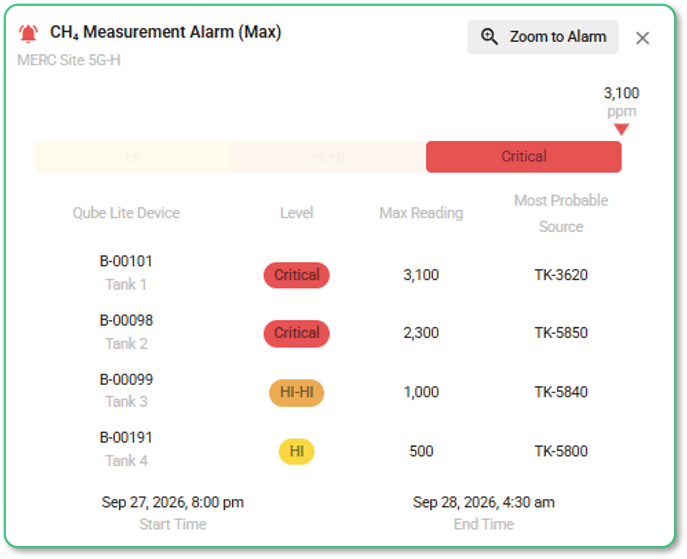
Measurement alarms list every every contributed device, ranked by max reading.
The change carries through to your exports and integrations. Alarm export adds a Device Peak Values column, and the Device, Device Alias and Most Probable Source columns list every contributing device. API and push integrations carry a new Ranked Devices field on alarms.
User Feedback on Image Labels
Camera image recognition now takes your feedback. In the full-screen image view on the Site Dashboard and the Camera Dashboard, a thumbs up marks the labels as correct. A thumbs down opens a Report a Labelling Problem form.
To set it up:
Open a full-screen image view on the Site Dashboard or the Camera Dashboard.
Use the thumbs up to mark the labels as correct.
Use the thumbs down to open the Report a Labelling Problem form.
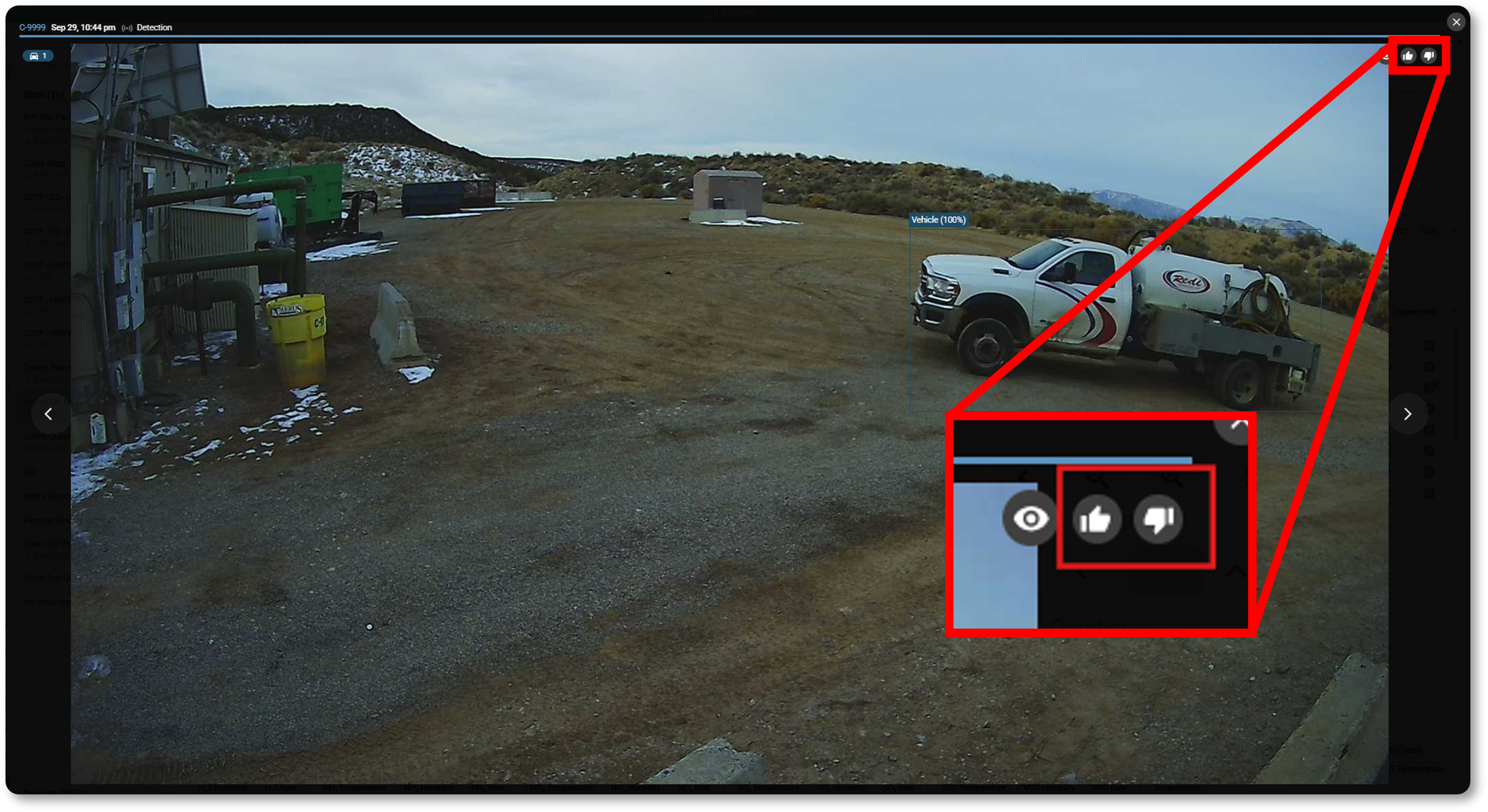
The thumbs up and thumbs down icons sit to the top right of the full screen image view.
Reporting a Labelling Problem
Select a reason and add the details. Feedback goes to the Qube team and is used to improve the system.
Image improvement options:
Something Was Missed: choose what was missed, such as a person or vehicle, and optionally place a marker on the image to show where.
A Label Is Wrong: choose which detected labels are wrong. Each one is listed with its confidence.
Other: describe the problem in the text box. A note is required for this option.
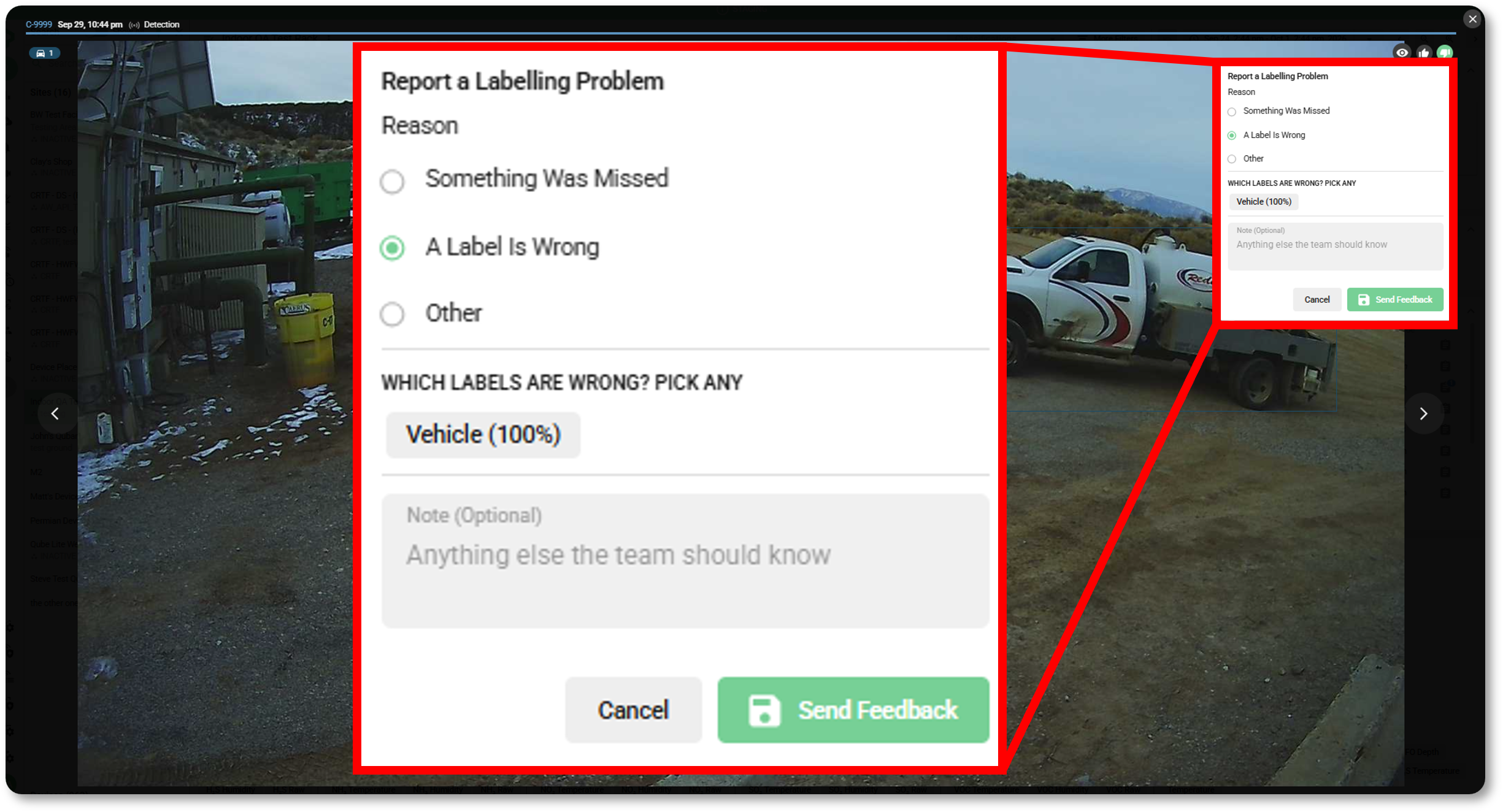
A thumbs down opens the Report a Labelling Problem form.
In the Device Dashboard under the Snapshots tab, you’ll find a new filterable Feedback column that shows how many reports were submitted for each snapshot.
The Snapshot Details dialog has a new Feedback tab listing who reported what and when. Selecting a “missed” report shows its marker on the image.